Virtual Stations
Virtual stations let you define custom station groupings with line filters and color overrides. Create configurations for different locations or daily routines and push them to the display with one tap.
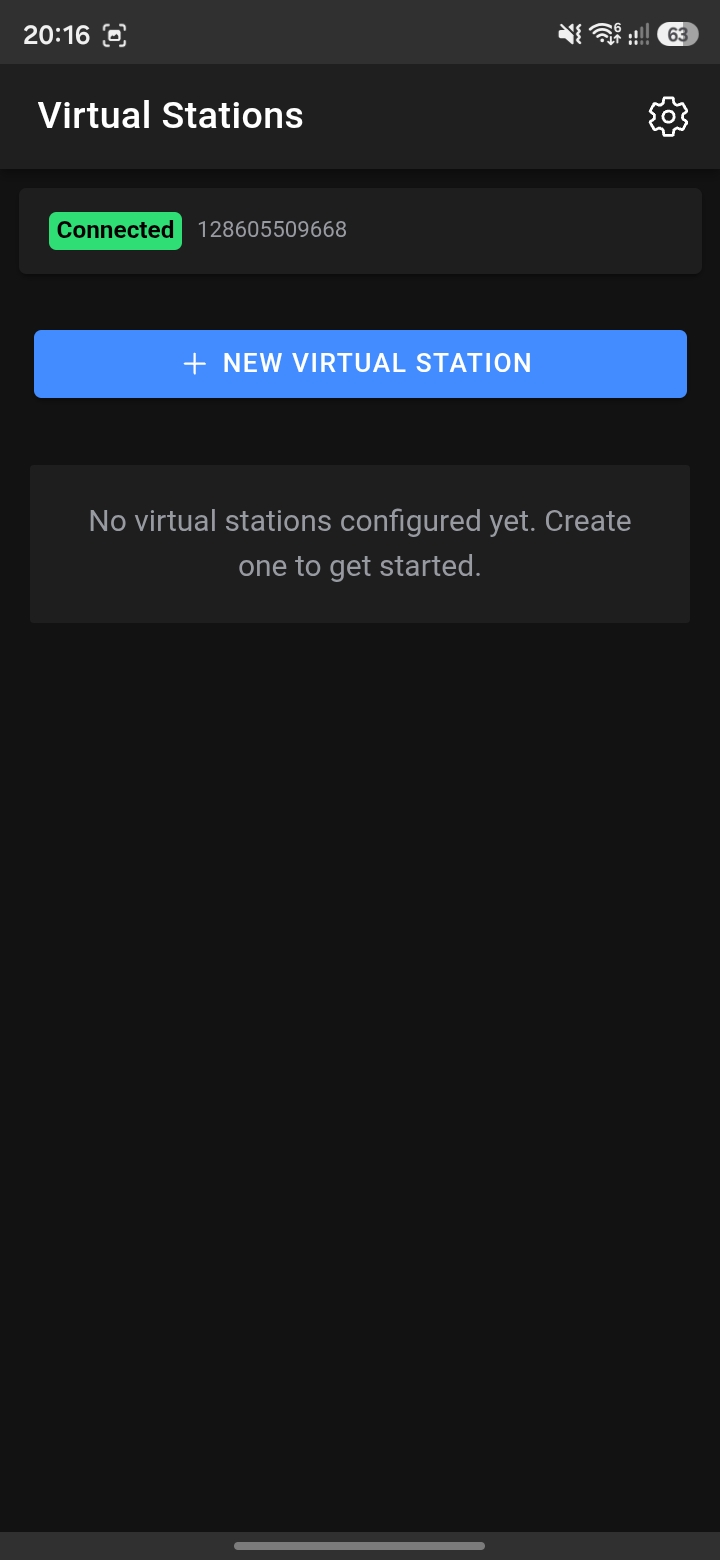
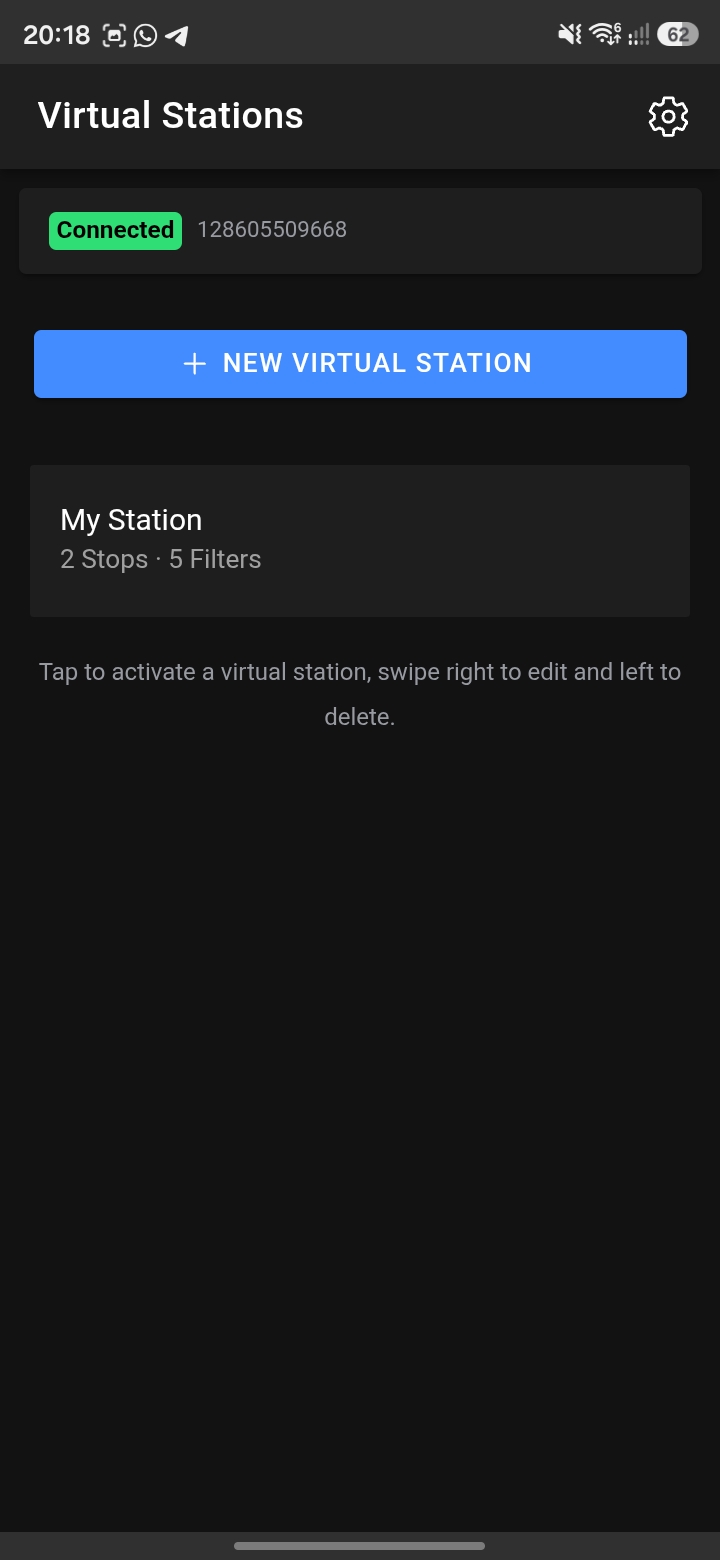
Virtual stations list with a connected device
Accessing Virtual Stations
- Connect to a Station Display.
- From the Home screen, tap the Virtual Stations link below the Station ID search field.
- Alternatively, in the Station ID search results, tap the Virtual Stations button.
The list screen shows all saved configurations. A connected device badge appears at the top.
Creating a Virtual Station
Tap New Virtual Station to open the editor.
Steps
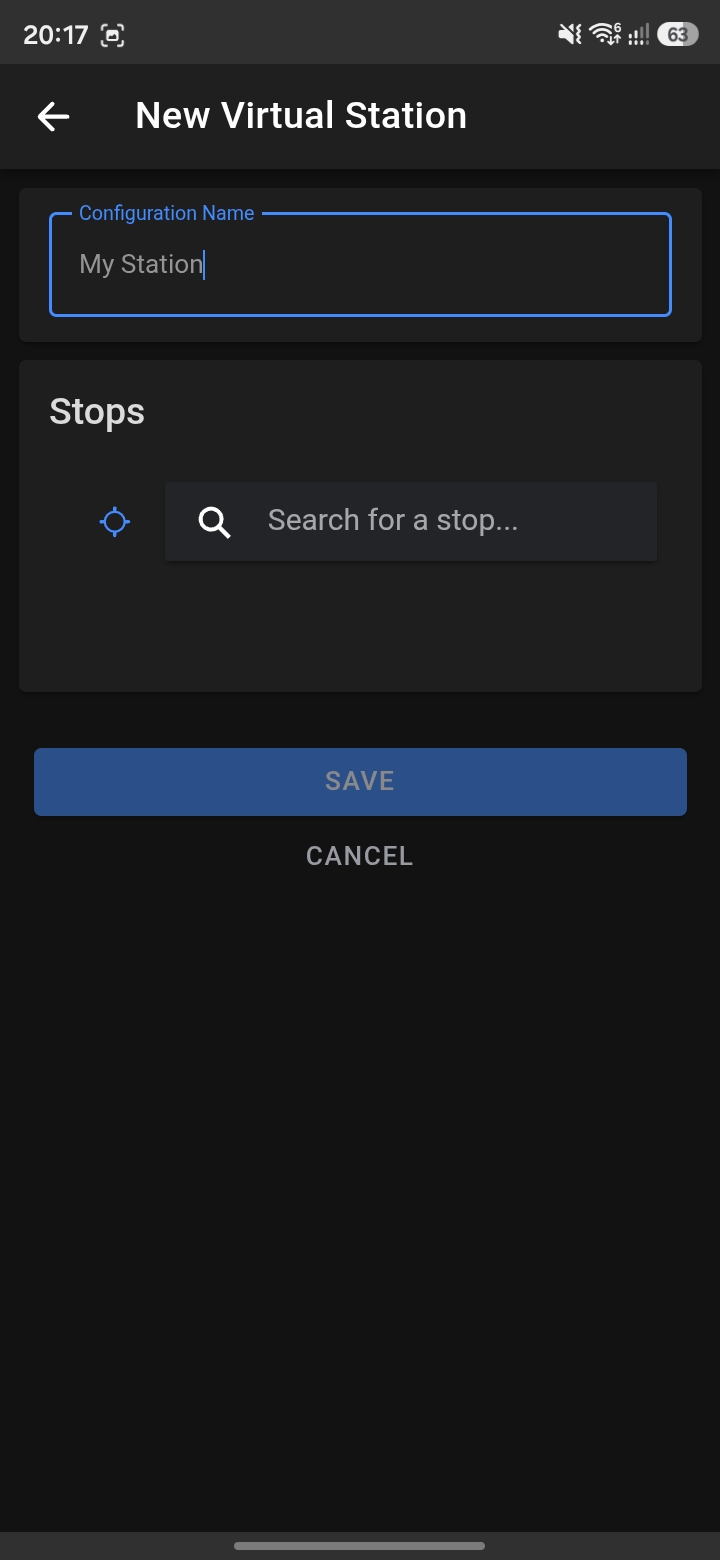
New virtual station editor
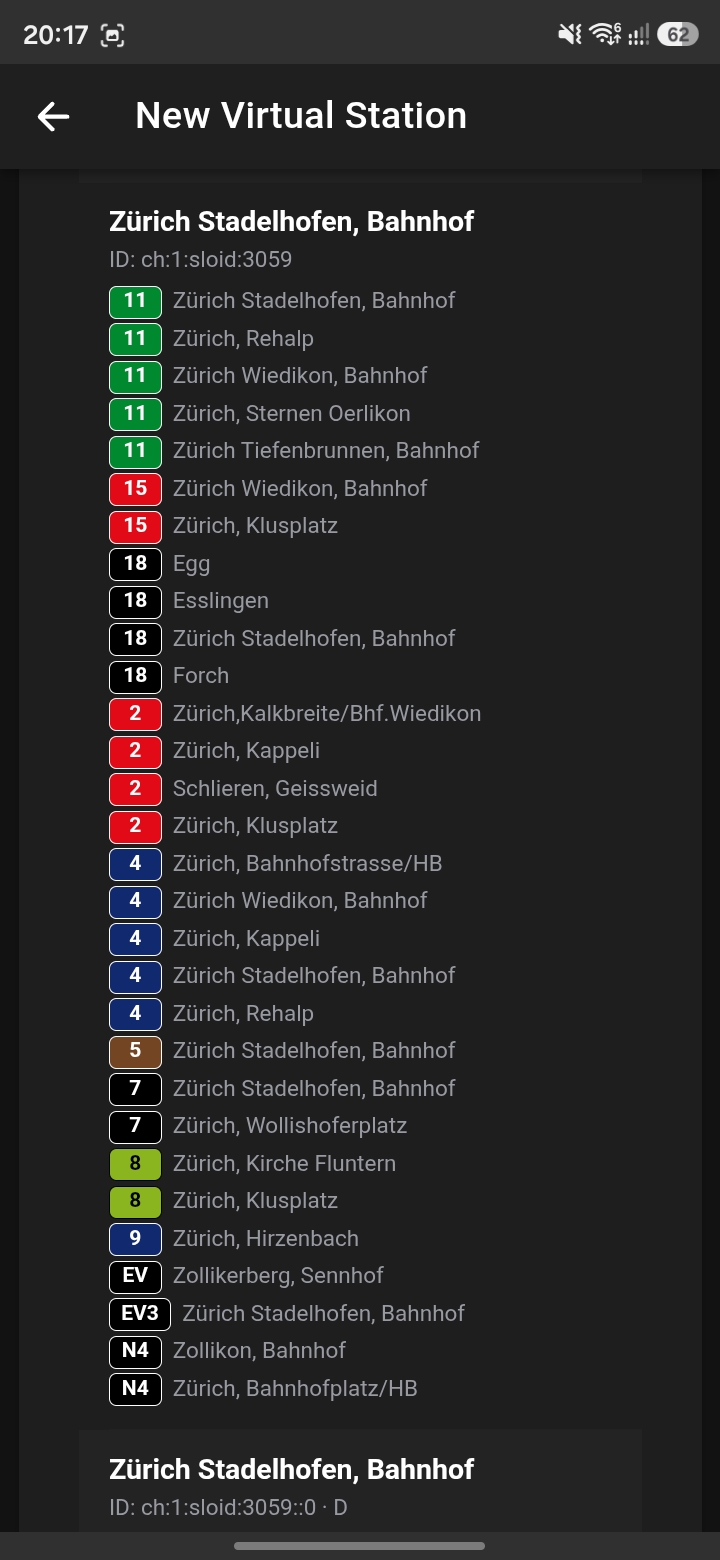
Searching for a stop with line information shown
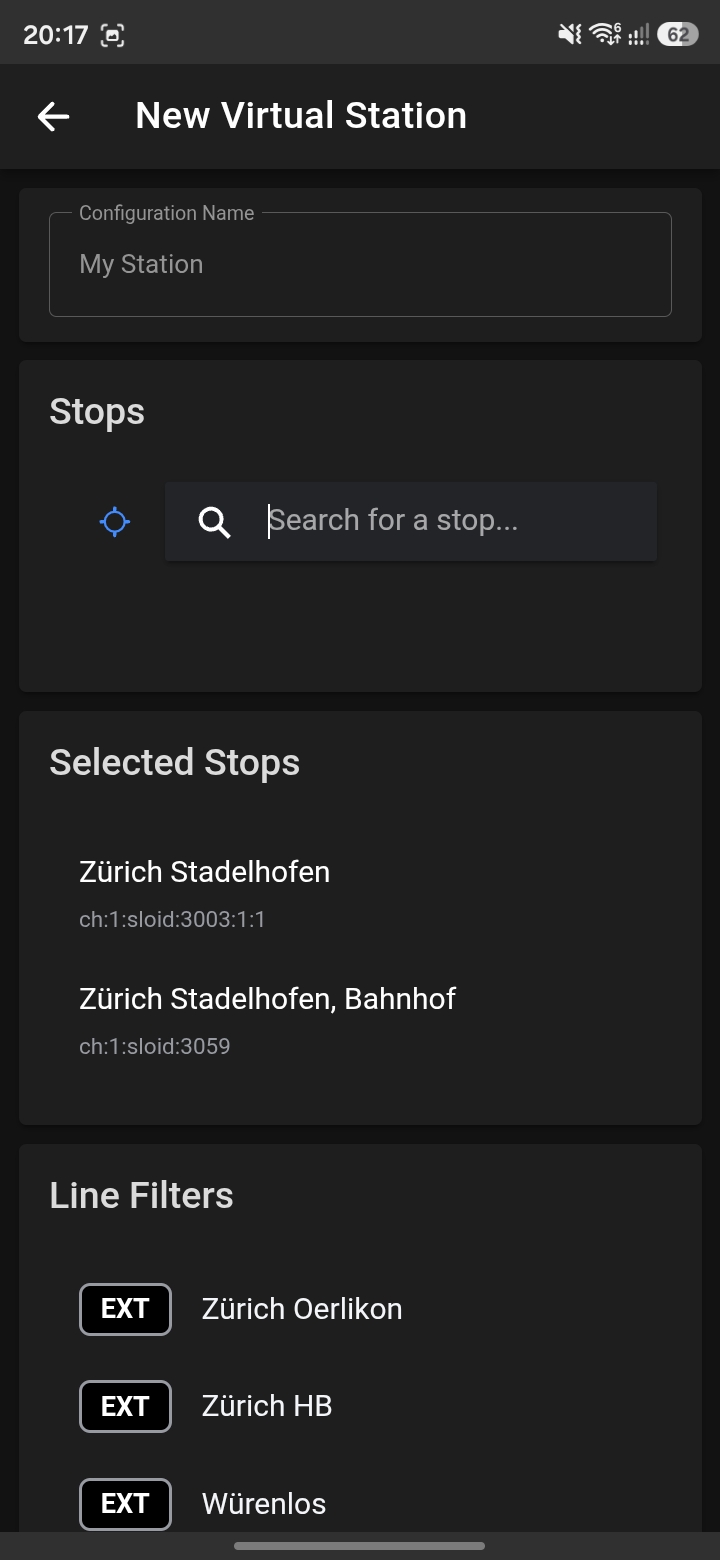
Two confifgured stations shown
Enter a Configuration Name (e.g. “Daily Commute”, “Office”).
Search for stops — Type a stop name or tap the location icon for nearby stops.
Select stops — Tap a search result to add it. Selected stops appear in the list below the search bar.
Swipe left on a stop to remove it.
Line Filters
Once stops are selected, available lines and their destinations appear automatically.
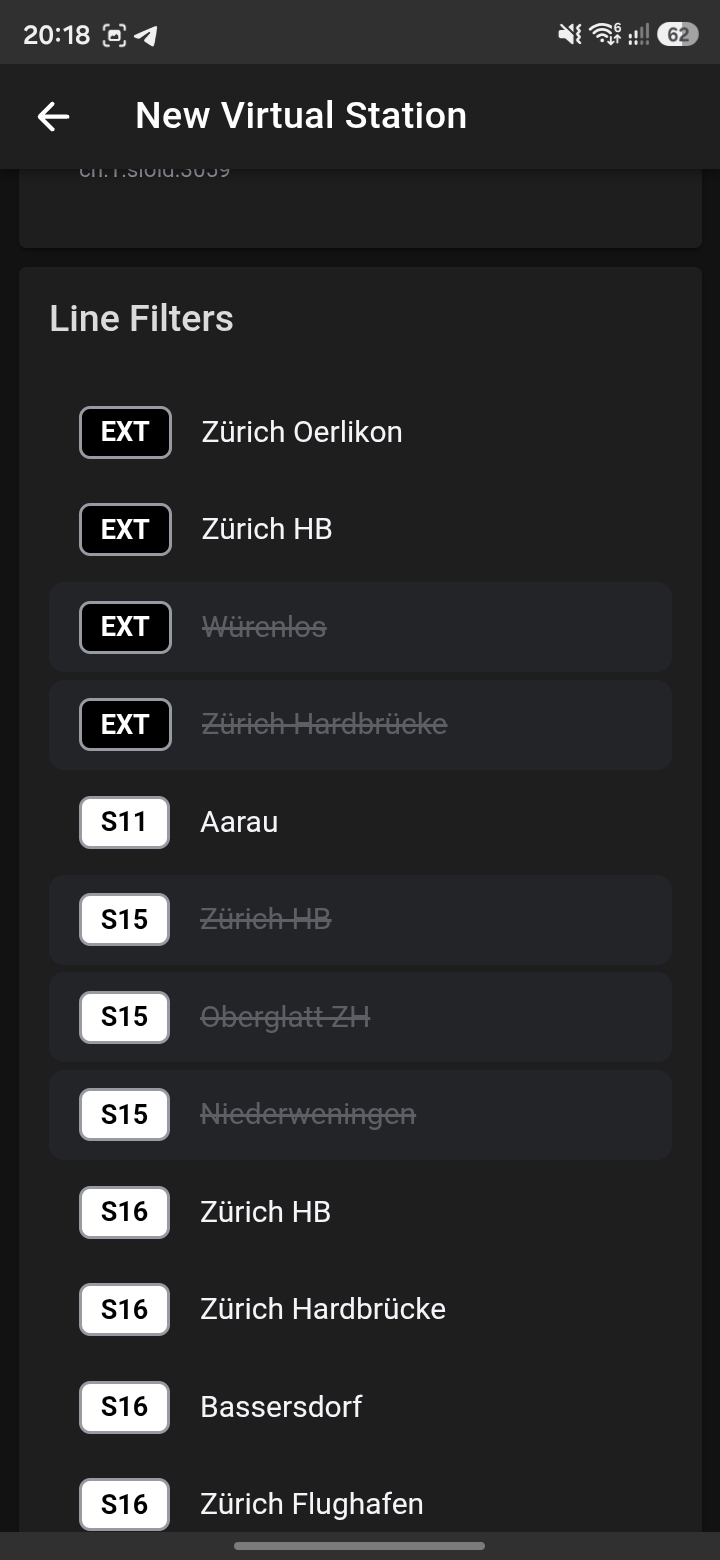
Line filters with toggle exclusion
- Exclude a destination — Tap a destination to toggle it off (struck-through, dimmed). Excluded destinations are not shown on the display.
- If any destination is excluded, an explicit include/exclude filter set is saved.
Line Colors
Customize the color badge for each line:
- Tap the line number badge to open the color picker.
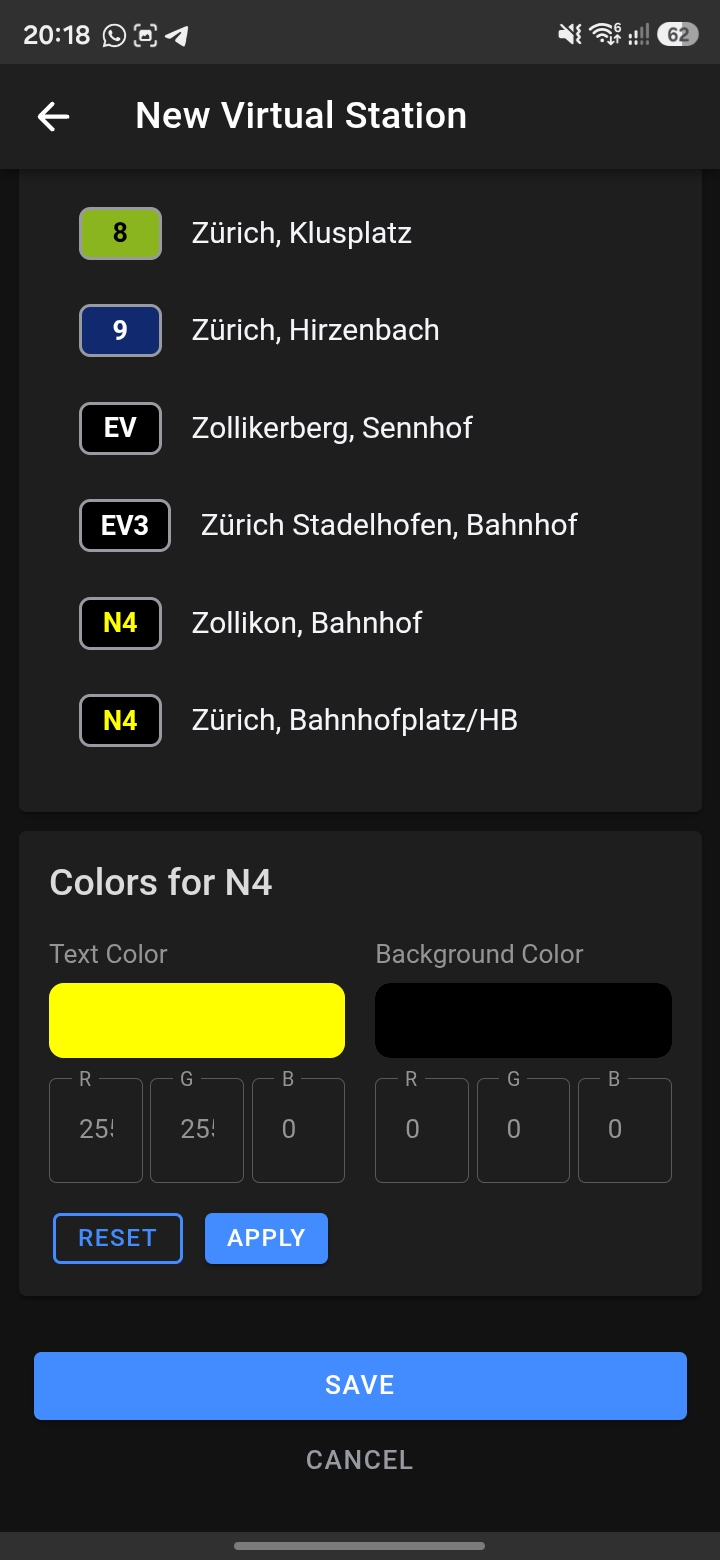
Color picker for a line badge
- Use the native color picker or enter RGB values manually.
- Set Text Color (foreground) and Background Color.
- Tap Apply to confirm, or Reset to revert to the line’s original colors.
Saving
Tap Save. The virtual station ID is written to the connected Station Display via BLE, and the configuration is saved to the cloud.
Editing a Virtual Station
Swipe right on a configuration in the list and tap the edit icon, or tap the configuration name.
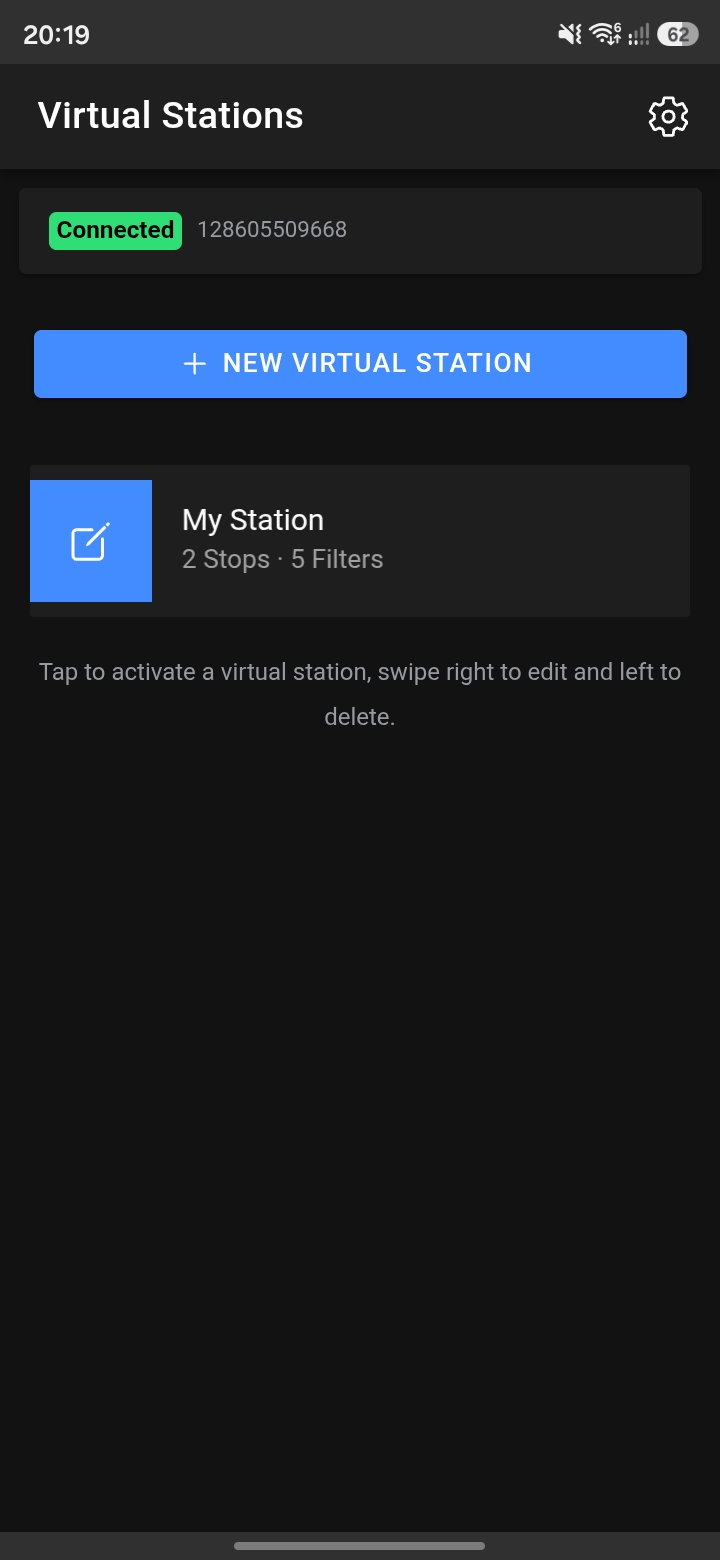
Swipe right to reveal edit button
Deleting a Virtual Station
Swipe left on a configuration and tap the delete icon. A confirmation dialog appears.
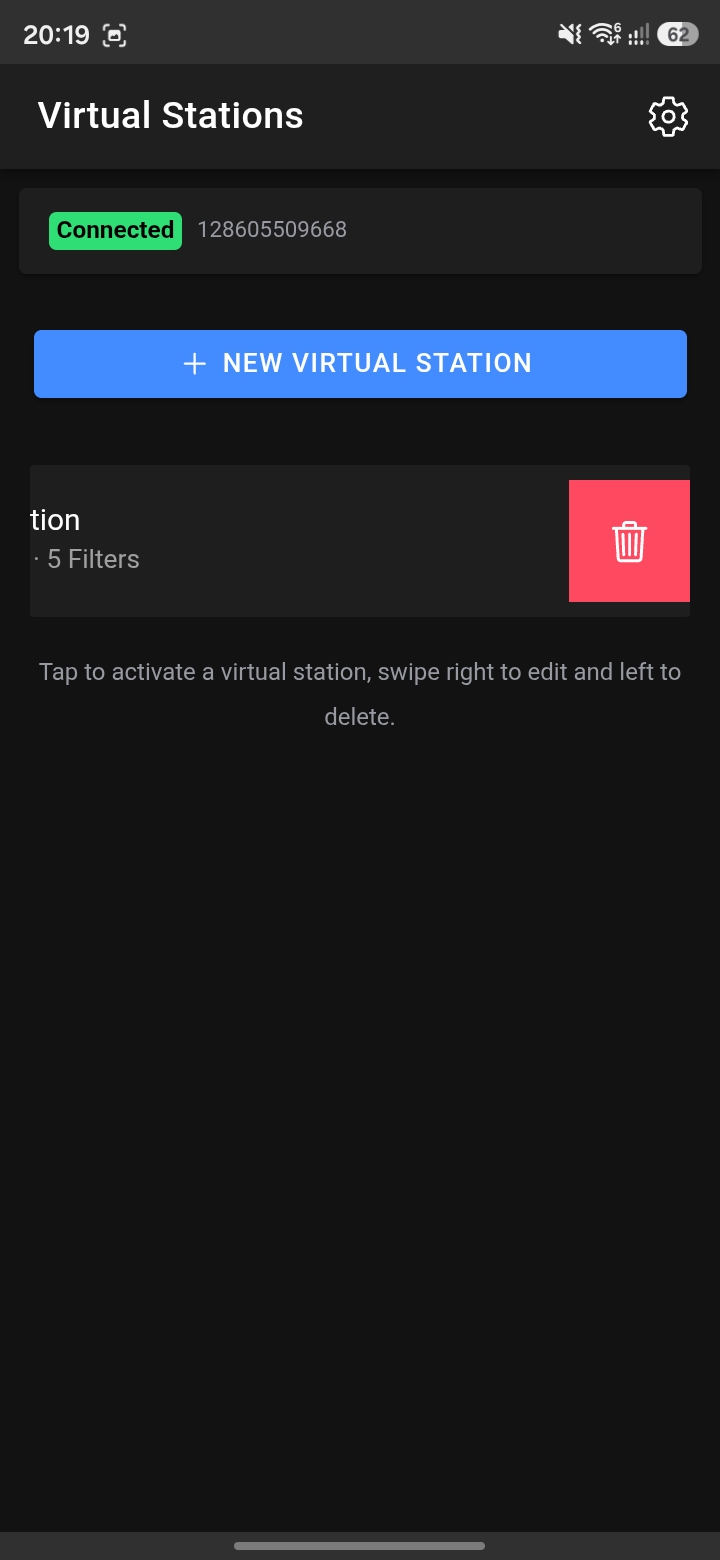
Swipe left to reveal delete button
Activating a Virtual Station
Tap a configuration in the list. The virtual station ID is populated into the Station ID field on the Home screen, and you’re returned to the settings page to save it to the device.
Tapping a config to activate it