Troubleshooting
Bluetooth Won’t Connect
- Power-cycle the Station Display. Bluetooth is only active for 5 minutes after power-up.
- Ensure the device is not connected to another phone/tablet (BLE supports only one connection).
- Verify Location permission is granted. BLE scanning requires it.
- In the app, tap Disconnect then Connect to retry.
App Shows “Connected” but No Settings Load
The display may be connected but not bonded. Power-cycle the display and reconnect.
WiFi Settings Not Applying
- The display reboots after saving. Wait 10-15 seconds for reconnection.
- Verify the SSID is spelled correctly (case-sensitive).
- Check that the network is 2.4 GHz
Station ID Search Returns No Results
- Verify internet connectivity on your phone.
- Try a shorter search term or partial name.
- Use the location-based search (location icon) to find nearby stops.
Virtual Station Won’t Save
- Ensure a name is entered and at least one stop is selected.
- The Station Display must remain connected during save.
Firmware Compatibility
Some settings require minimum firmware versions. The app automatically hides incompatible options based on the connected device’s firmware version. The Station display will check for a firmware update every 24 hours and on boot. To force a check, make sure your station display has internet and power cycle it.
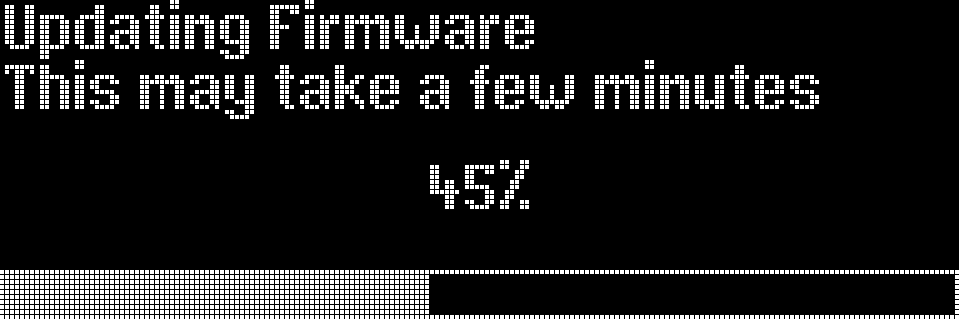
Station Display Firmware Update